A complete guide to RE-KORD 5 — from installation to the Plectr rhythm game.
Step 1
Installation
Go to the Download page. On the computer that holds your music, install RE-KORD Server: the app plus the hub. On every other computer, install RE-KORD Client; phones use the Android app, and any browser works too.
desktop_windows
Windows: both downloads are portable. Run the Client .exe directly; extract the Server .zip and start RE-KORD Server.exe. If SmartScreen appears, choose More info → Run anyway.
terminal
Linux: make the AppImage executable and run it, or install the .deb with sudo apt install. Both need glibc 2.39+ (Ubuntu 24.04 or newer). For a NAS or a server without a desktop, use the headless package (./run.sh) or Docker.
smartphone
Android: install the APK (Android 8.0+, arm64), then type the hub address or tap Scan the QR. Coming from the legacy app? Uninstall it first: the signing key changed.
Your music stays put: the hub reads your music folder where it is and never moves the files. It expects Artist/Album/track and detects other layouts. Its own data (index, accounts, settings) lives in a separate data folder.
Step 2
First steps
First set up the hub on the computer with your music, then connect your other devices to it.
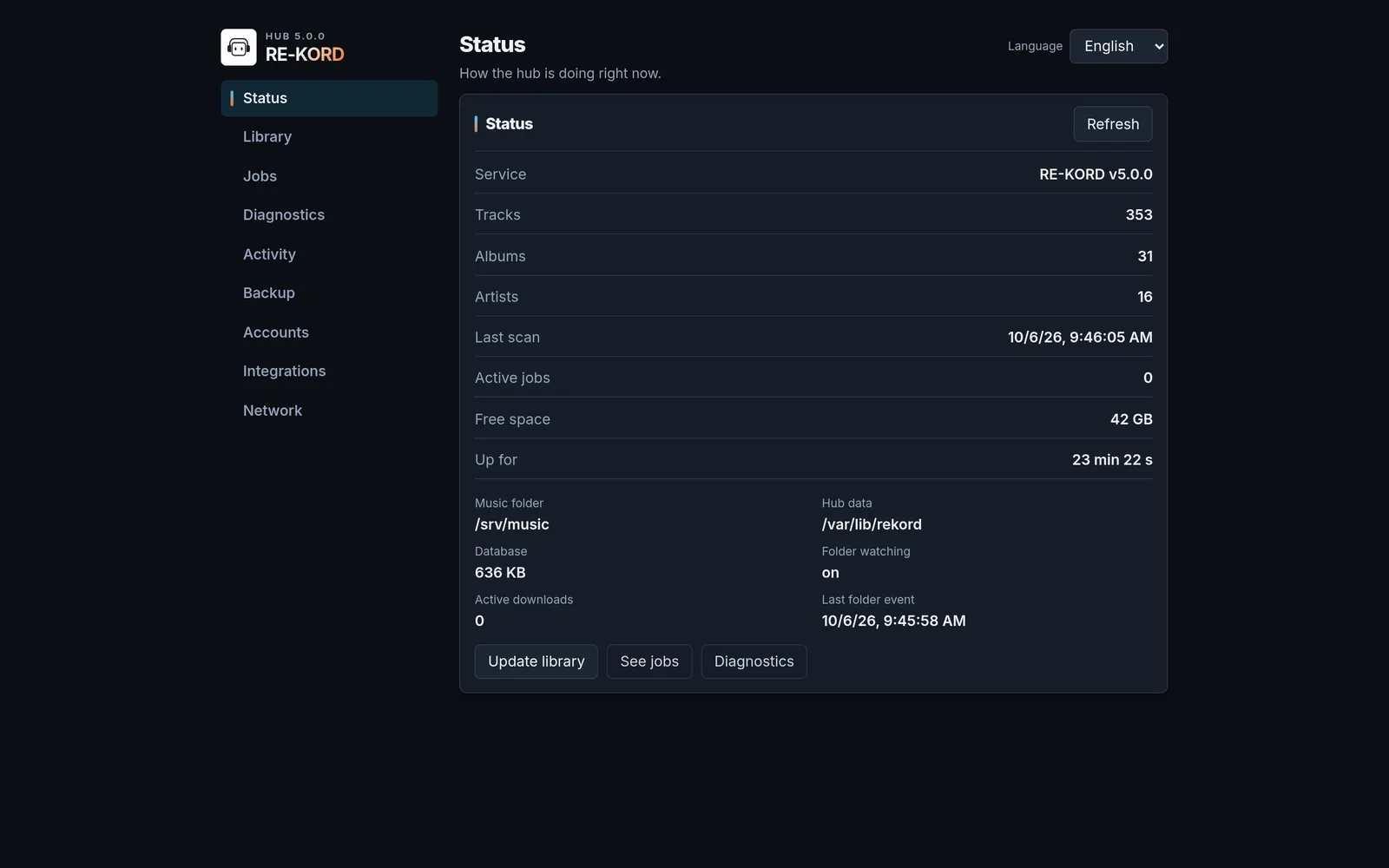
The admin panel at /admin: hub status, music folder, data folder and folder watching
dns
On the hub computer
RE-KORD Server: the app and the hub on the computer with your music.
1
Start RE-KORD Server (or the headless hub). The hub listens on port 7420.
2
Open the admin panel at http://localhost:7420/admin, go to Library › Music folder, enter the path to your music and choose Save path. The scan starts.
3
Coming from legacy RE-KORD? Use the same folder: the first scan imports favorites, playlists, moods, play counts, accounts and settings automatically.
4
Open the RE-KORD window (or http://localhost:7420/ in a browser), start from Home, then browse the Library and press play.
devices
On your other devices
Client app, Android app or browser — the library stays on the hub.
1
Make sure the hub is running on the computer with your music (RE-KORD Server, headless hub or Docker).
2
The Client first tries a hub on the same computer; otherwise it shows the connect screen. Choose Local network and enter the hub's IP (e.g. 192.168.1.20) and port 7420, or Public URL for a tunnel address.
3
On Android, tap Scan the QR and scan the code from the admin panel (Network › Local network access). Then choose an account — a hub with a single account skips this step.
4
In a browser, just open http://<hub-ip>:7420/: the hub serves the client, there is nothing to install.
tips_and_updatesUseful tips
How the hub, clients and accounts workMachine operations: only on the hub computer
Step 3
Library
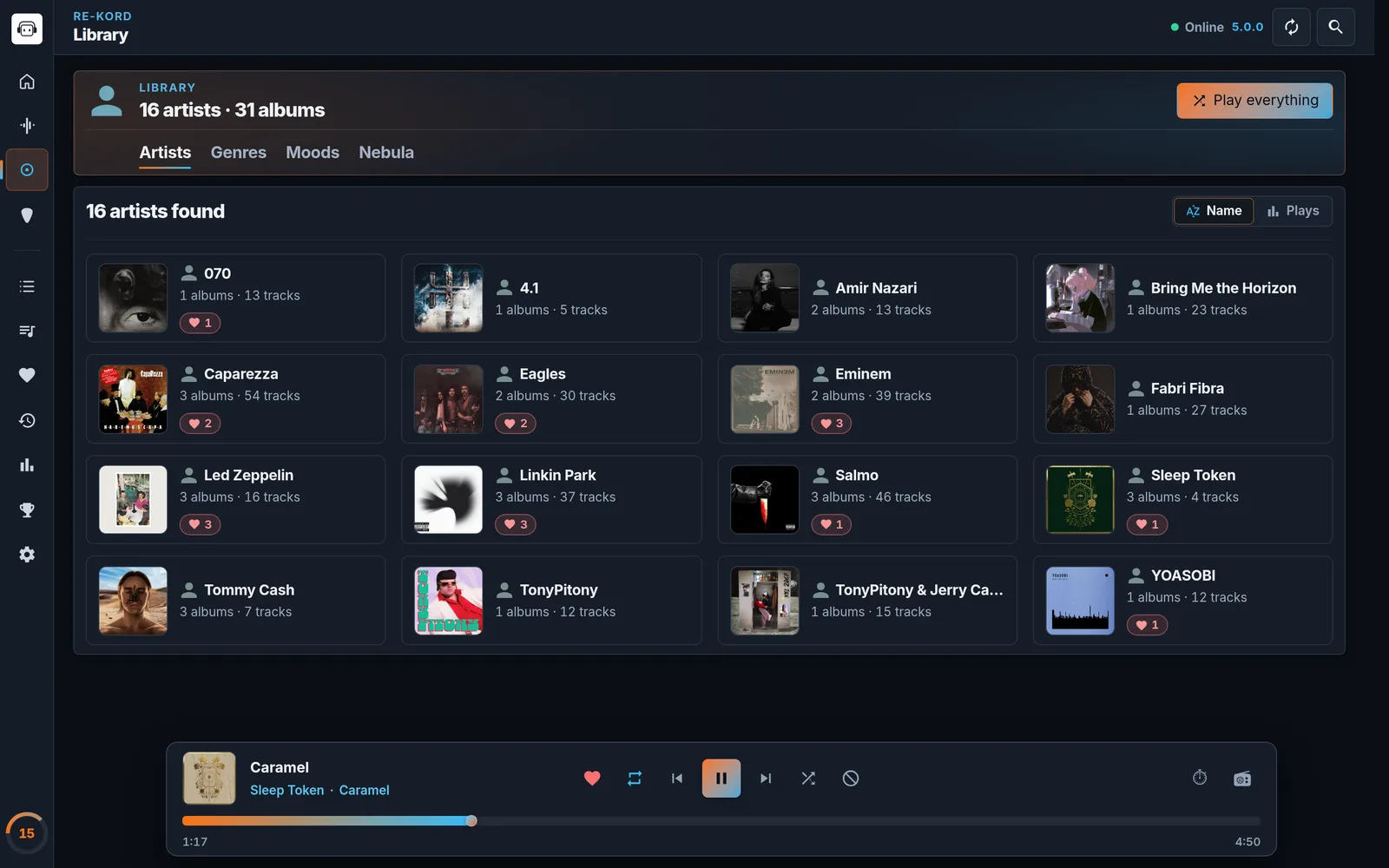
The Library has four tabs — Artists, Genres, Moods and Nebula. Search everything with Ctrl+K or /: accents are ignored and every word matches as a prefix.
Library › Artists: covers, album and track counts, favorites per artist
Albums and tracks
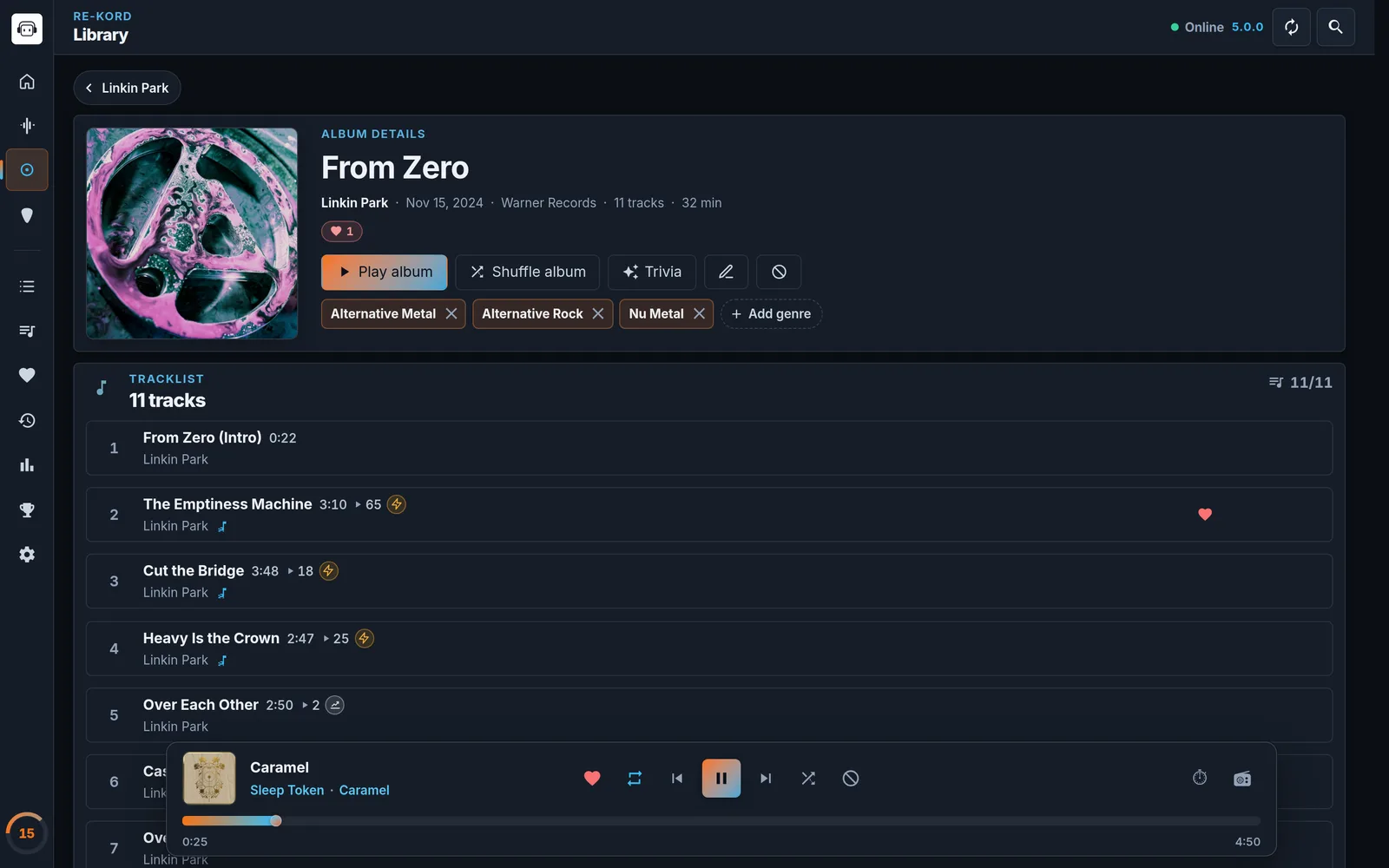
Album pages have Play album, Shuffle album, Trivia and genre chips. Edit a track's title, release date, genres, up to three moods and lyrics — with Auto LRC. Genres are picked from your library's own list, and spellings of the same genre count as one. Fields you edit by hand are never overwritten by rescans.
Smart shuffle
Block single tracks or whole albums from shuffles and radios. Shuffle moves recently played tracks to the end and spreads out the same artist. Exclusions are personal to each account.
Favorites & playlists
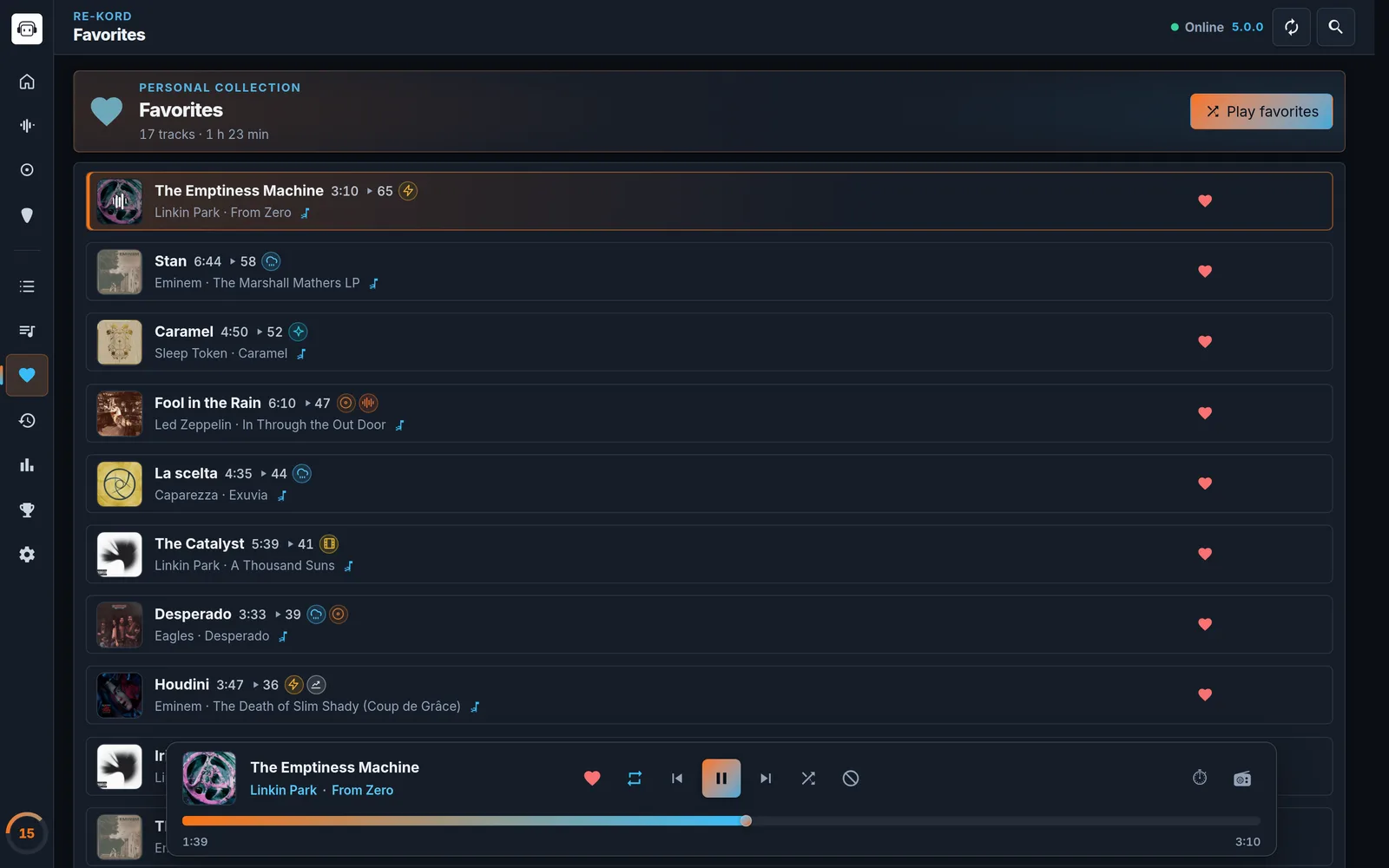
Heart a track to add it to Favorites, most played first. Create playlists, reorder their tracks, or save the current queue as a playlist.
Quality alerts
Home flags albums without cover art or metadata, tracks without metadata and folders with loose tracks. Click the Quality alerts tile or a row to open the To fix list, with the right fix on every item.
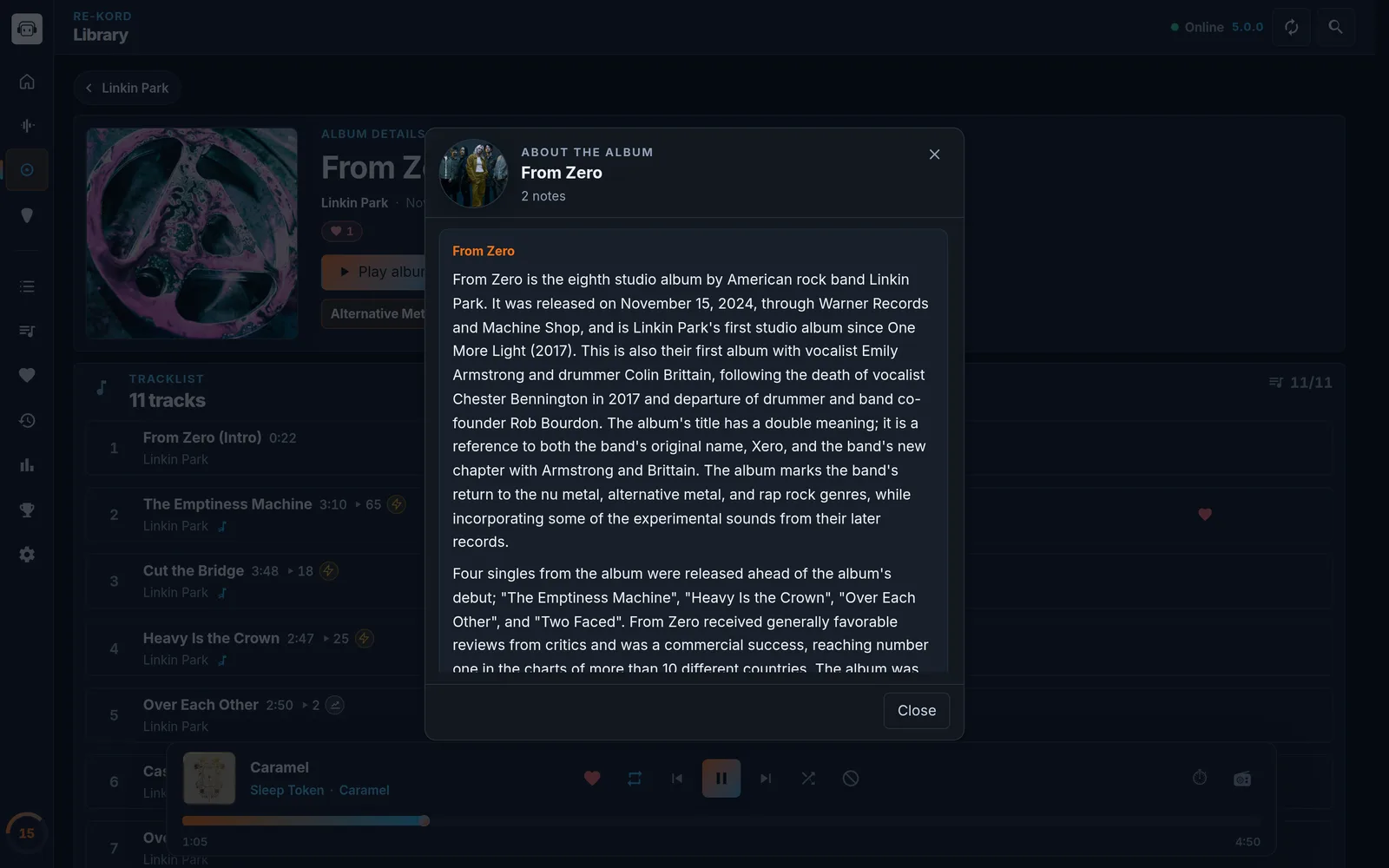
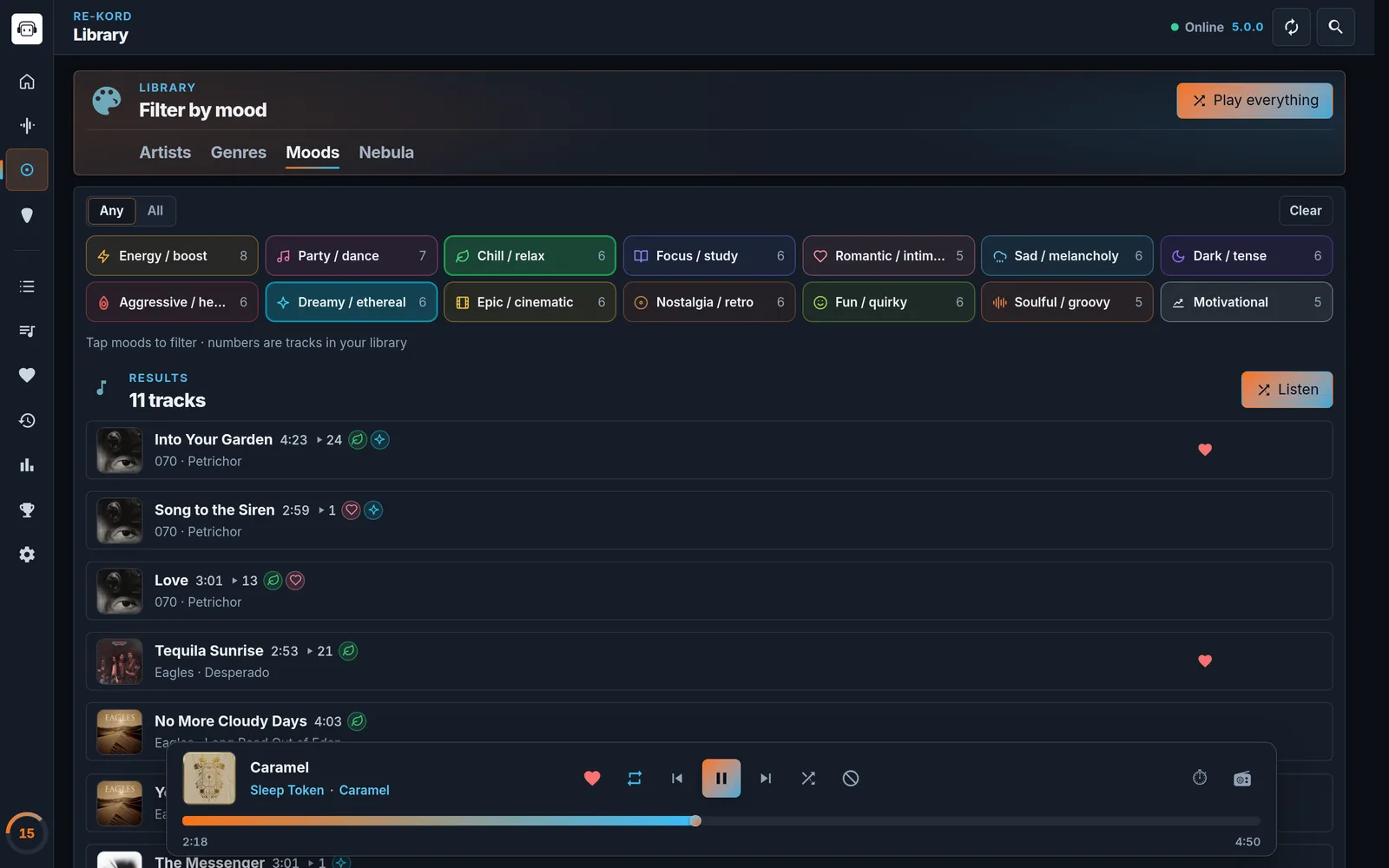
Album page: play, shuffle, trivia, edit, genre chipsTrivia: notes about the album, saved from StudioLibrary › Moods: 14 filters, at least one or all together, then ListenFavorites: your hearted tracks, most played first
auto_awesomeSonic Nebula — the universe of your music
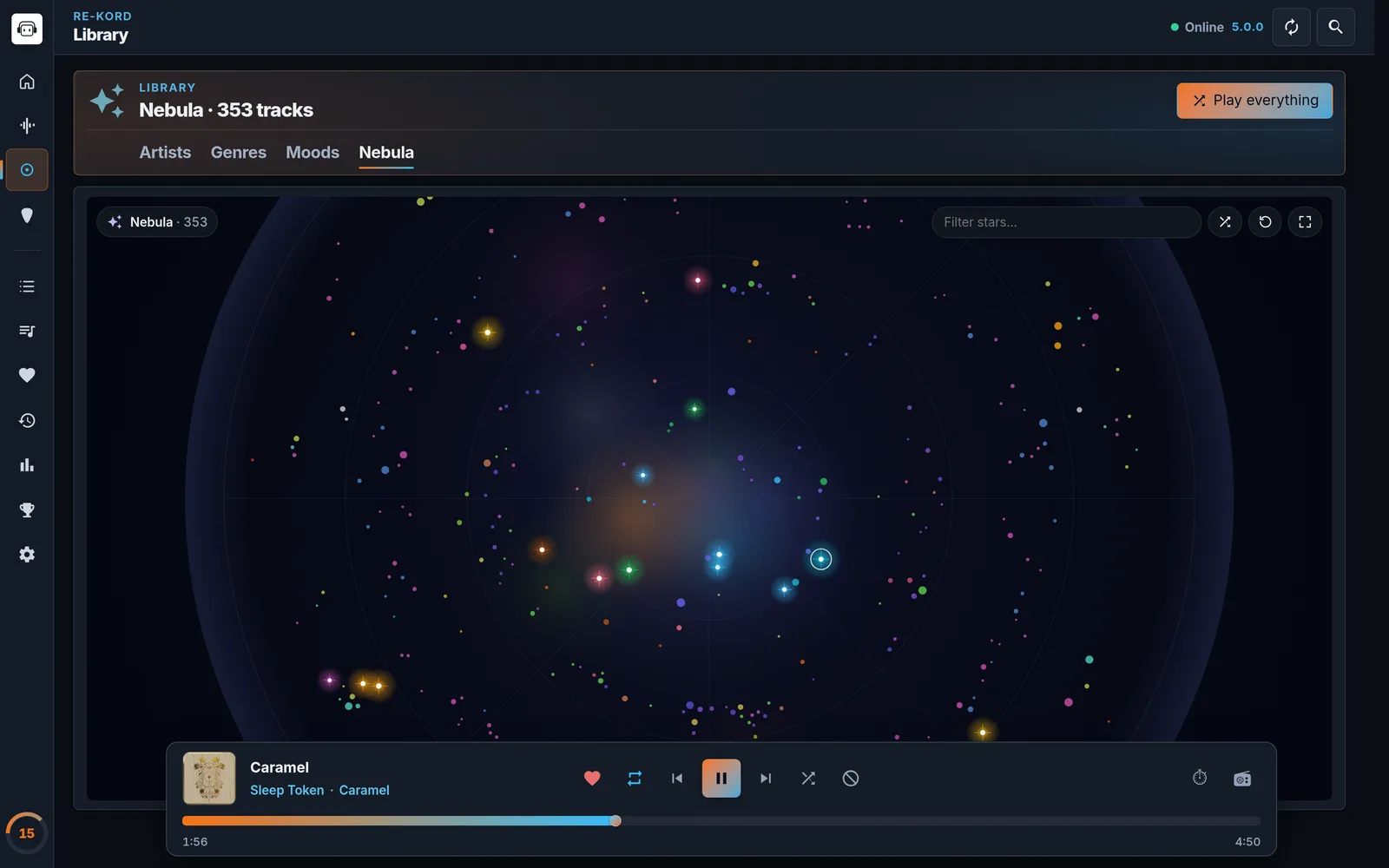
Open the Nebula tab (or the Nebula card on Home) to see your library as a galaxy. Every track is a star: its angle follows the tempo (BPM), its distance from the center the energy — calm in the middle, energetic at the edge. The color comes from the first mood, else the genre; the size from the play count.
Sonic Nebula — every track is a star, placed by tempo and energy
Explore — drag to pan, scroll or pinch to zoom, or go fullscreen; arrow keys and +/- work too.
Listen — click a star, then Play or Radio here; double-click plays and Shift+click starts a radio.
Filter — Filter stars… narrows the map, Surprise me jumps to a random star and Reset view brings you back.
audio_fileTags and covers from your files
RE-KORD reads the tags and covers stored in your files — FLAC, MP3, M4A/AAC/ALAC, Ogg Vorbis, Opus, WAV and AIFF, plus WMA and WebM through ffmpeg — on the first scan of a file and whenever it changes. They only fill what nobody curated: a value you typed in Studio is never overwritten, and the scan never writes into the music folder.
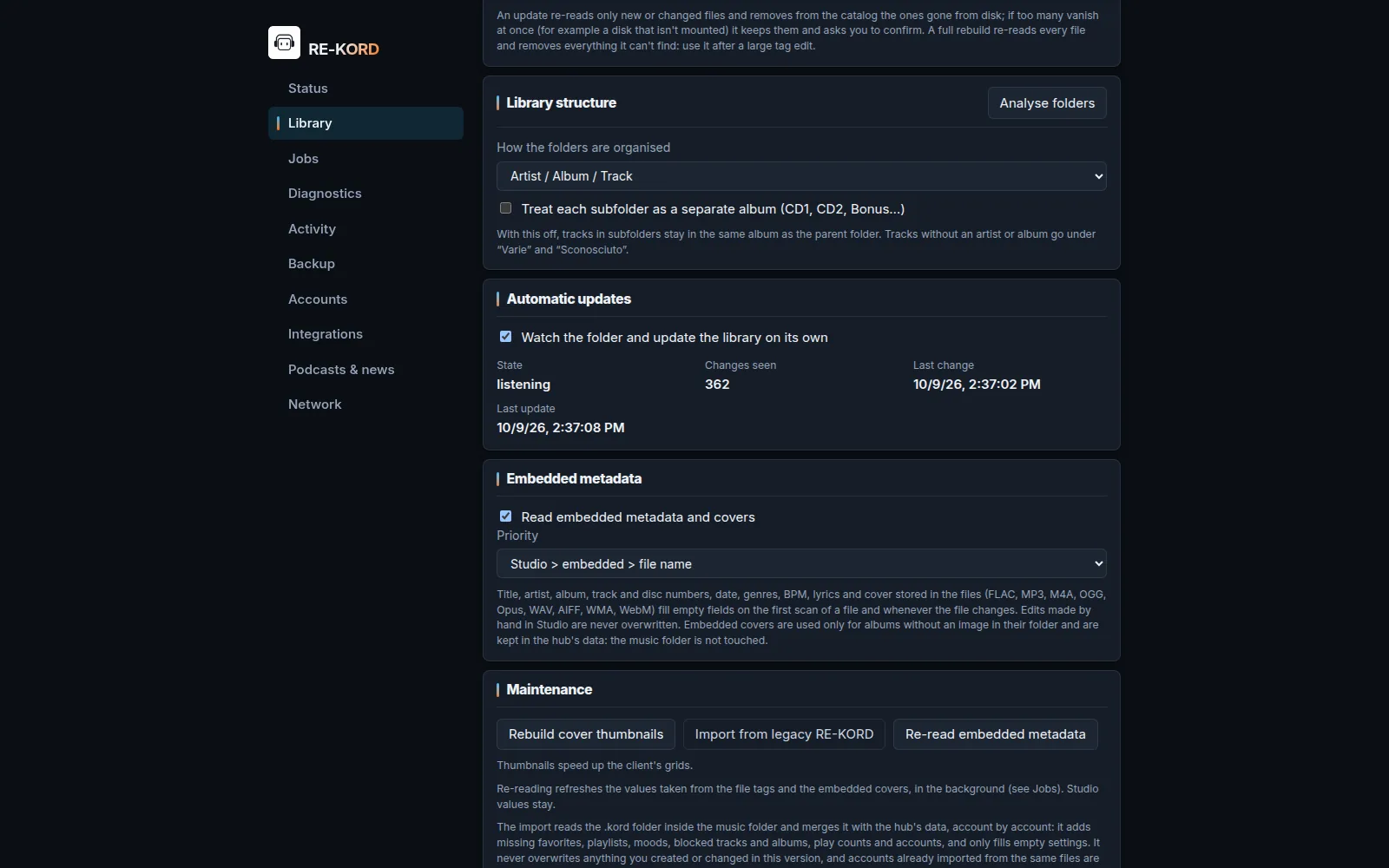
Admin panel › Library: Embedded metadata and its priority, Re-read embedded metadata under Maintenance
On or off — admin panel, Library › Embedded metadata › Read embedded metadata and covers (on by default).
Priority — Studio > embedded > file name (default) keeps what Studio, sidecar files, metadata fetches or the previous version stored, and the tags fill the rest. Embedded > Studio (filling only) lets the tags also replace values that were filled in automatically. Values typed by hand still win.
Re-read — Maintenance › Re-read embedded metadata reads the tags again in the background (progress in Jobs). With the embedded priority, Re-read and replace Studio values too also replaces values typed by hand, after a confirmation.
Covers — albums without an image in their folder get the front cover stored in their files, kept in the hub's data folder. A cover chosen in Studio or an image in the folder always wins. A library indexed by an earlier version is completed once by a background job, Reading embedded metadata.
tips_and_updatesUseful tips
Blocking tracks or albums from shufflePlay buttons: how the queue is builtMoods: filter and playInstant playlist from genres and moodsSmall signs that save time
Step 4
Player & Visualizer
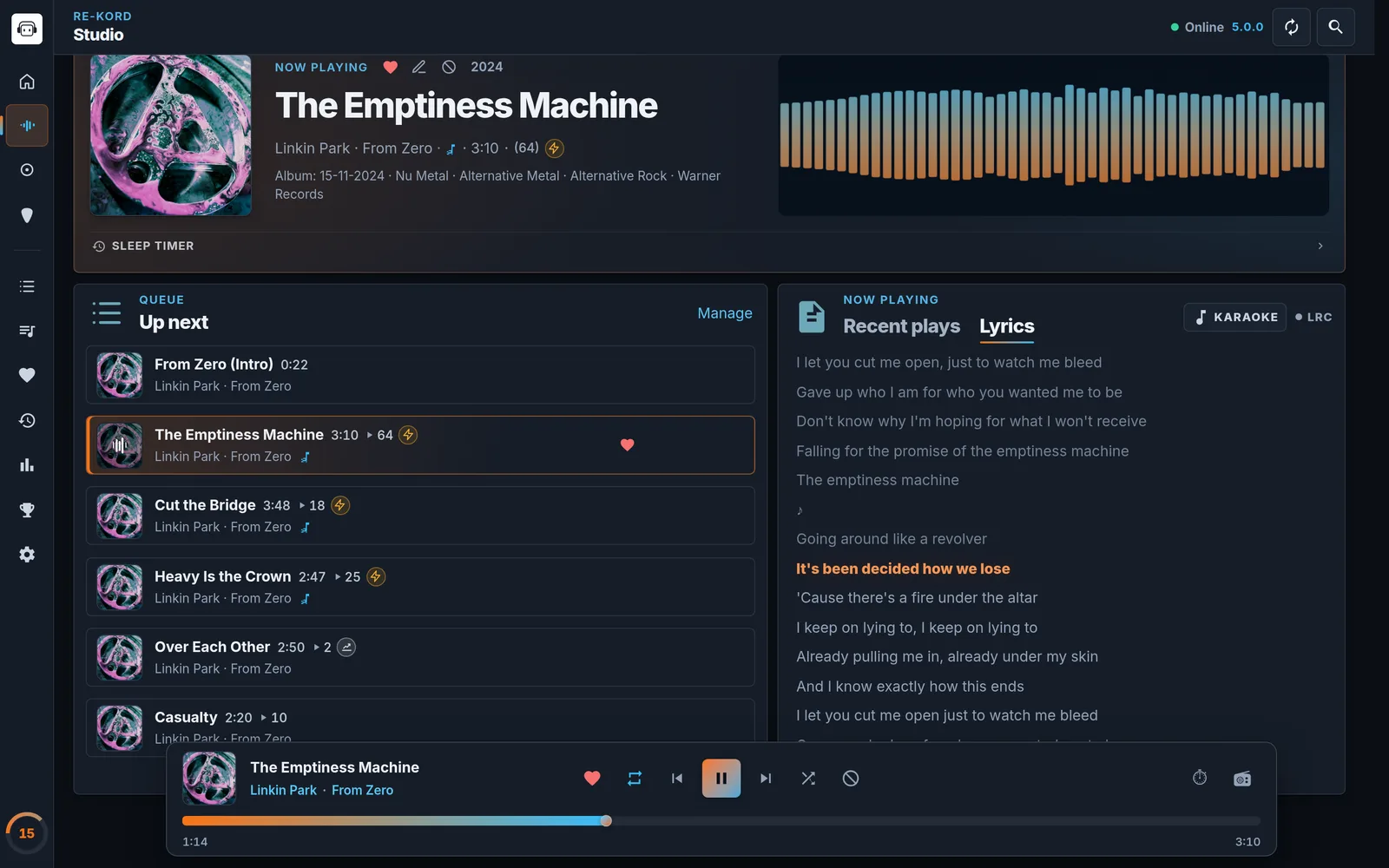
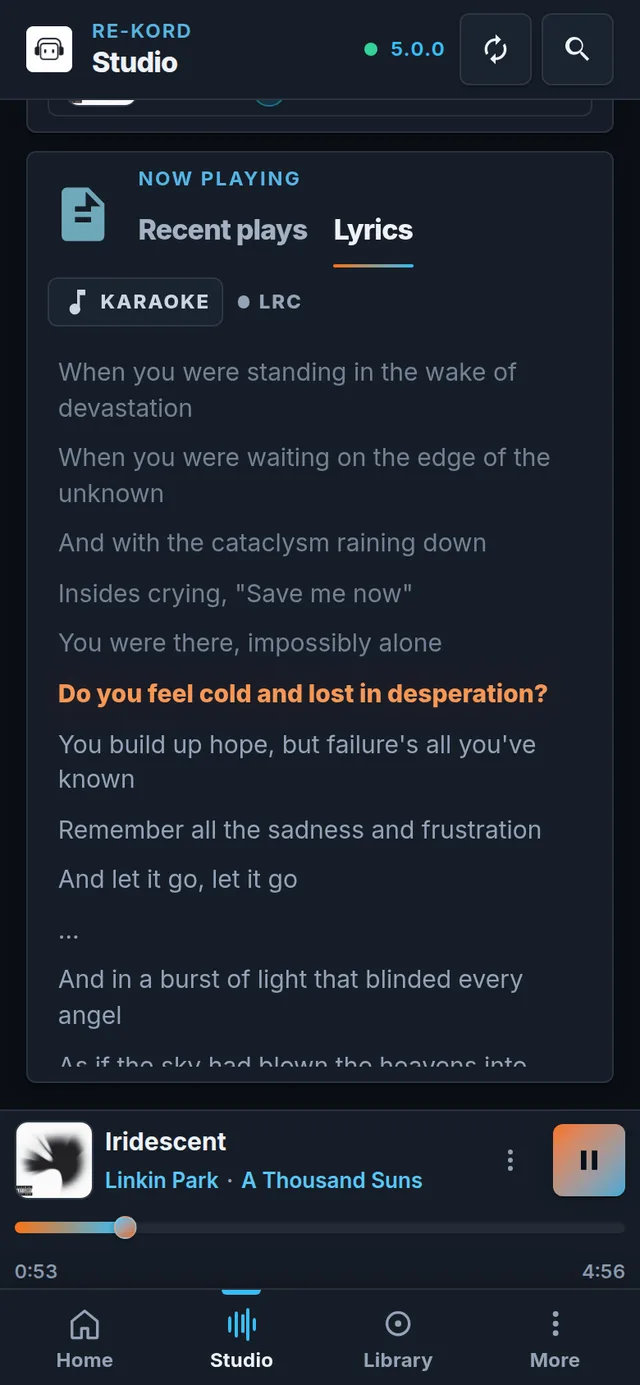
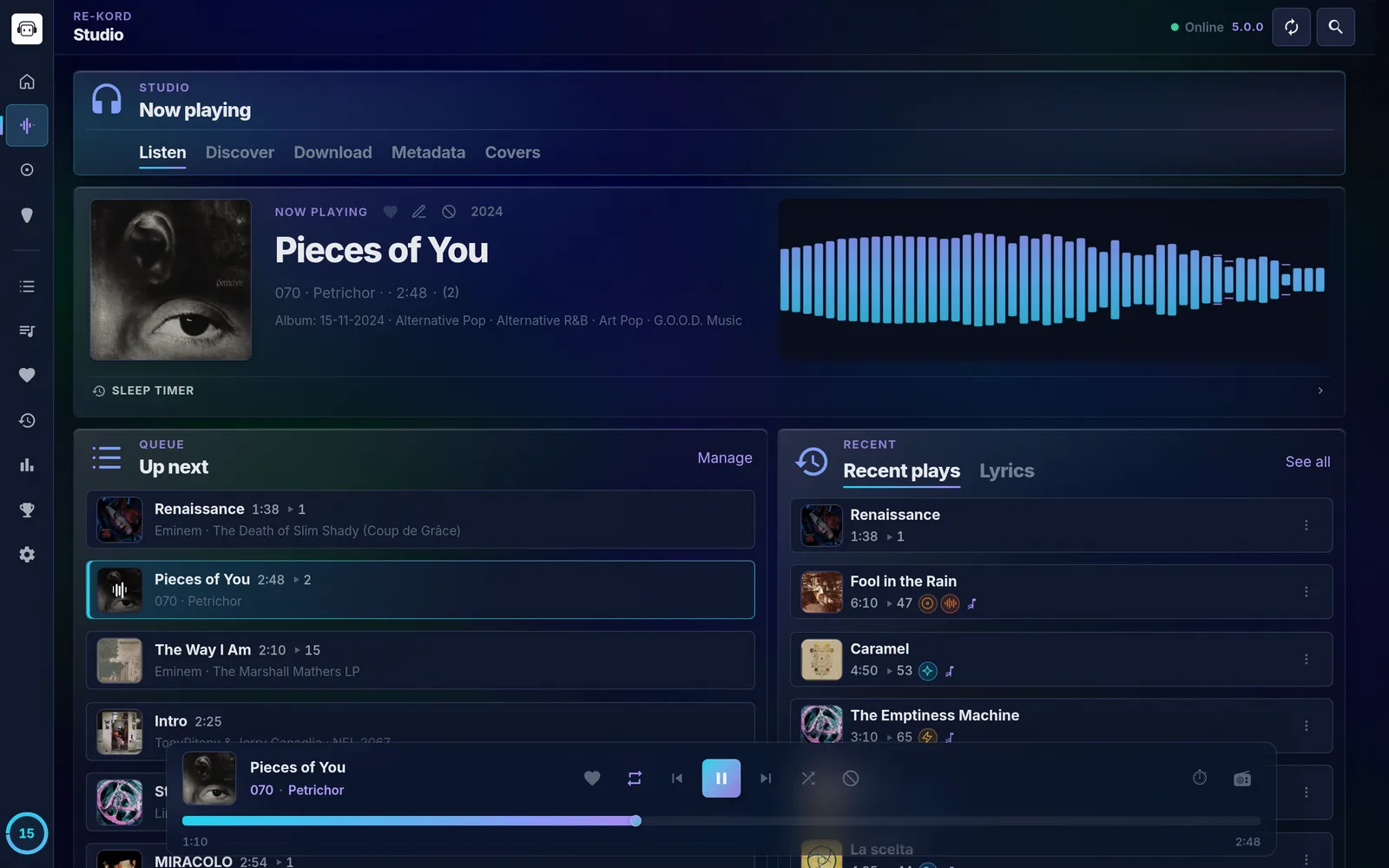
The player dock stays at the bottom while you browse: repeat, shuffle, exclusions, Cast, the sleep timer and Radio from track. Studio › Listen is the full now-playing screen with the visualizer, Up next and synced lyrics. The queue is saved per account on the hub, so it follows you to other devices.
Studio › Listen: now playing, Up next and synced lyricsOn a phone: synced lyrics follow the music
podcastsPodcasts & news
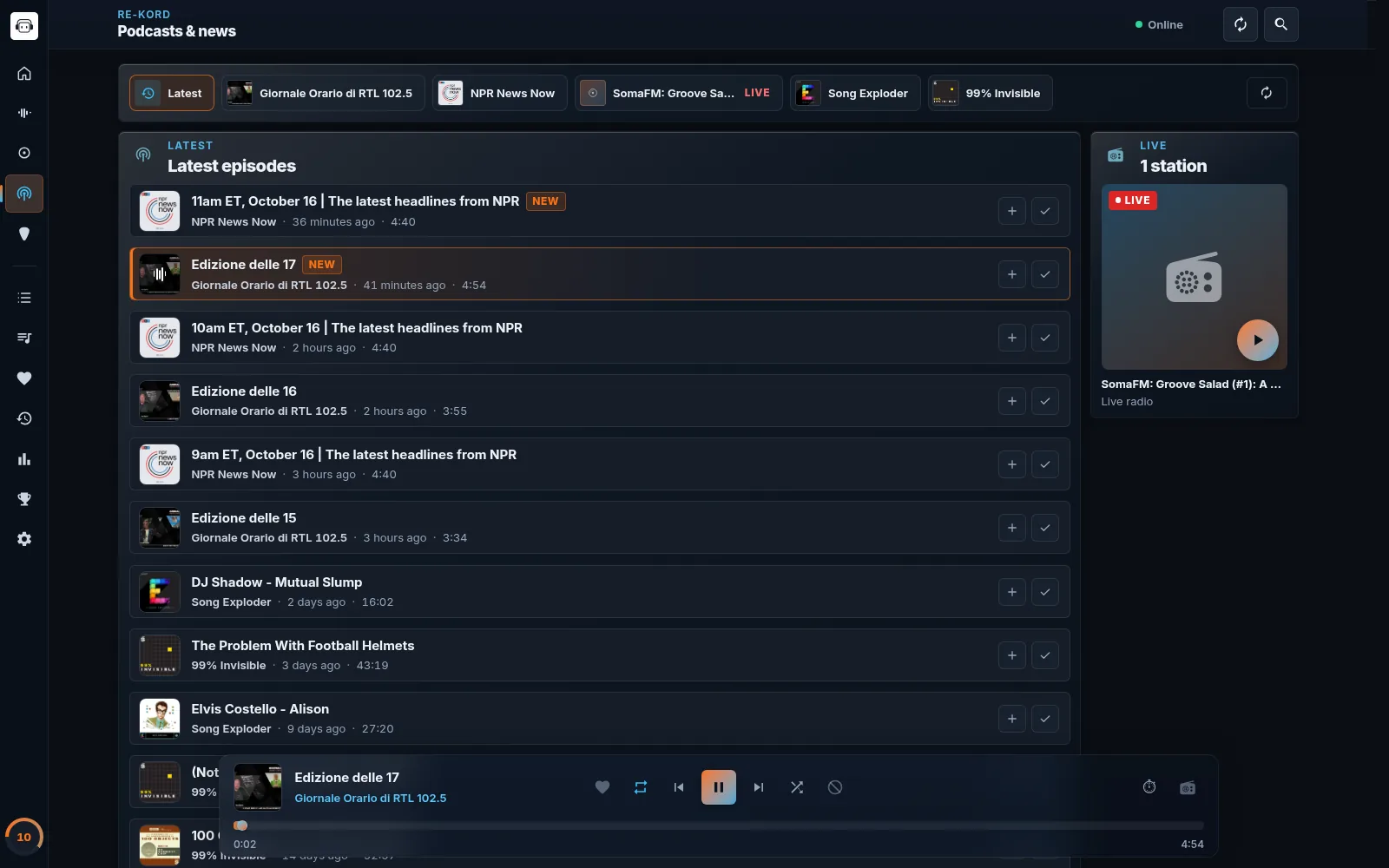
An optional module, off by default: news bulletins, podcasts and live radio, played in the normal player. While it is off nothing of it appears in the app and the hub does no work for it.
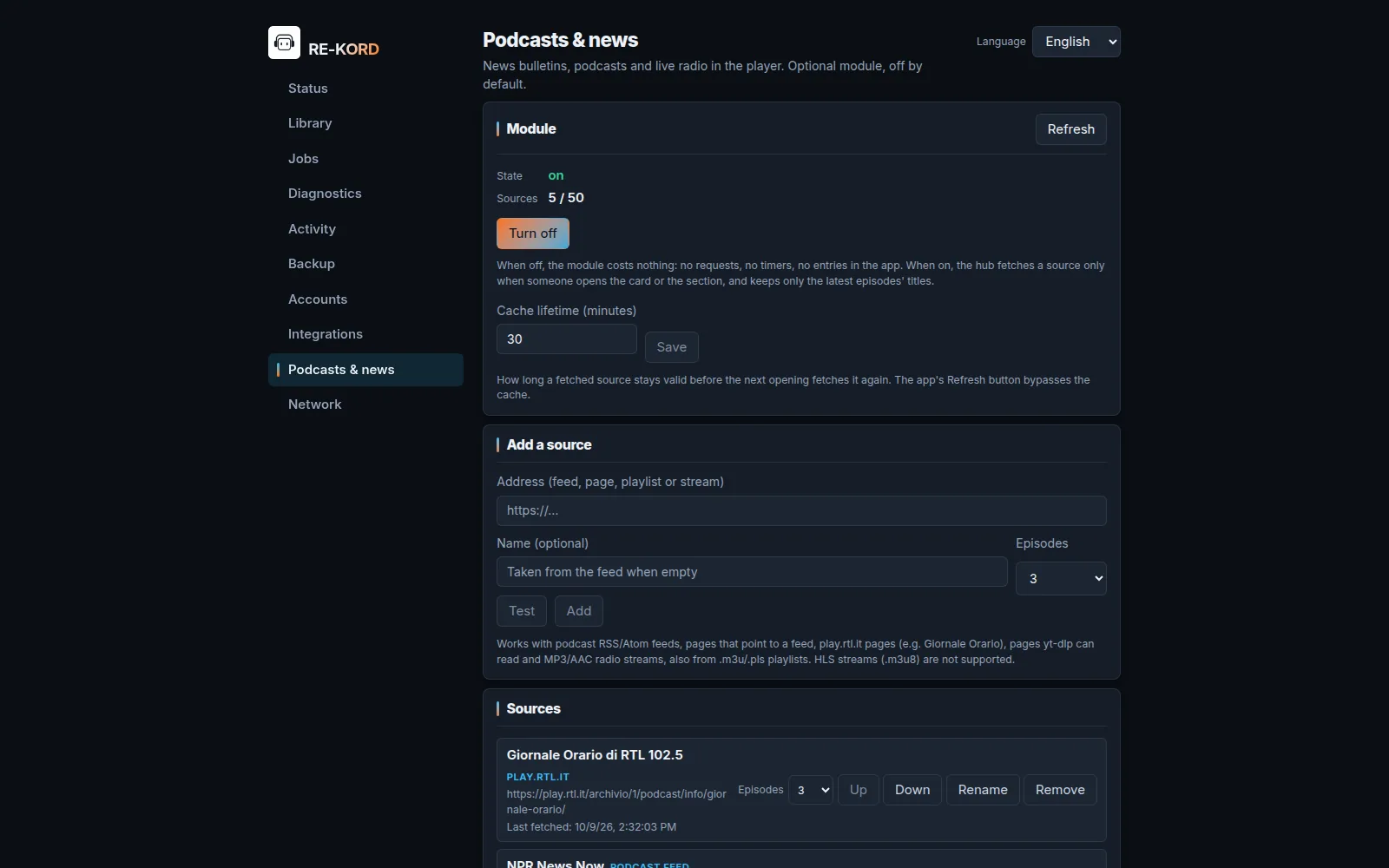
Podcasts & news: the latest episodes from every source and a live stationAdmin panel › Podcasts & news: turn the module on, test and add sources
1
Turn it on: in the admin panel open Podcasts & news and choose Turn on Podcasts & news — on the hub computer, or anywhere with remote administration on. Clients show it at their next refresh.
2
Add a source: paste an address in Add a source, choose how many episodes to show (1–20) and press Test to see what it finds, then Add.
3
Listen: Home gets a Podcasts & news card and the navigation a section (under More on a phone). Tap an episode to play it right after the current track, + to queue it, ✓ to mark it listened. A started episode resumes where you stopped, on every device; live radio shows LIVE and cannot be seeked. On Home, tapping a show opens its page; if you left one of its episodes halfway, it first asks Continue “…”? — Continue or Open the podcast. Live stations play at once.
Light by design: the hub fetches a source only when someone opens the card or the section and reuses it for 30 minutes; nothing is checked in the background.
tips_and_updatesUseful tips
Fixed order (playlist & album)Smart shuffleSmart Radio from one trackThe Queue pageWhen something goes wrongCast to Google Cast devicesPlayer on phone and tabletVisualizer and karaokeCrossfade, sleep timer and shortcuts
Step 5
Studio
Studio is where the library grows and gets tidied. It changes files on the hub, so it works from the hub computer — or from any device once remote administration is turned on in the admin panel.
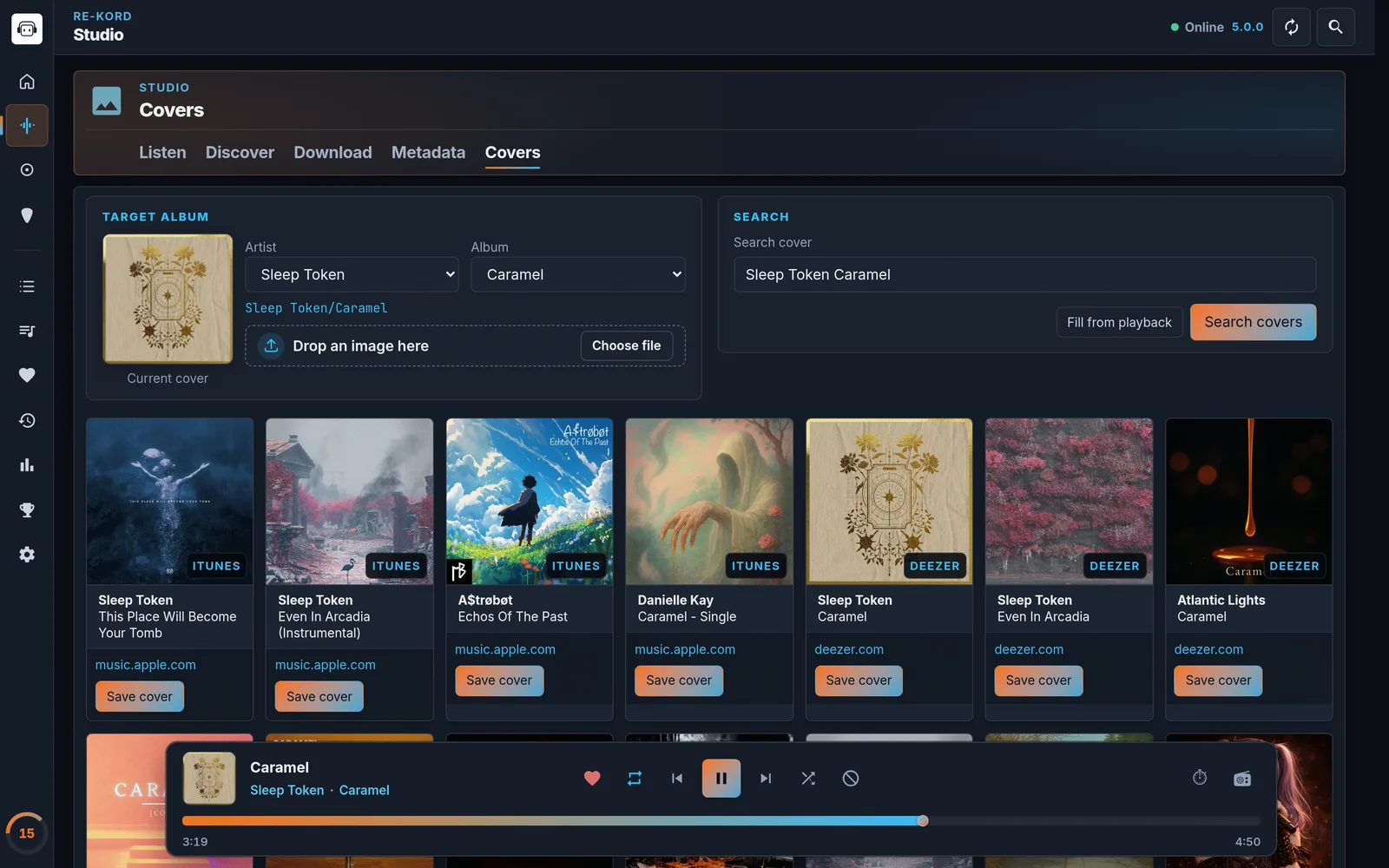
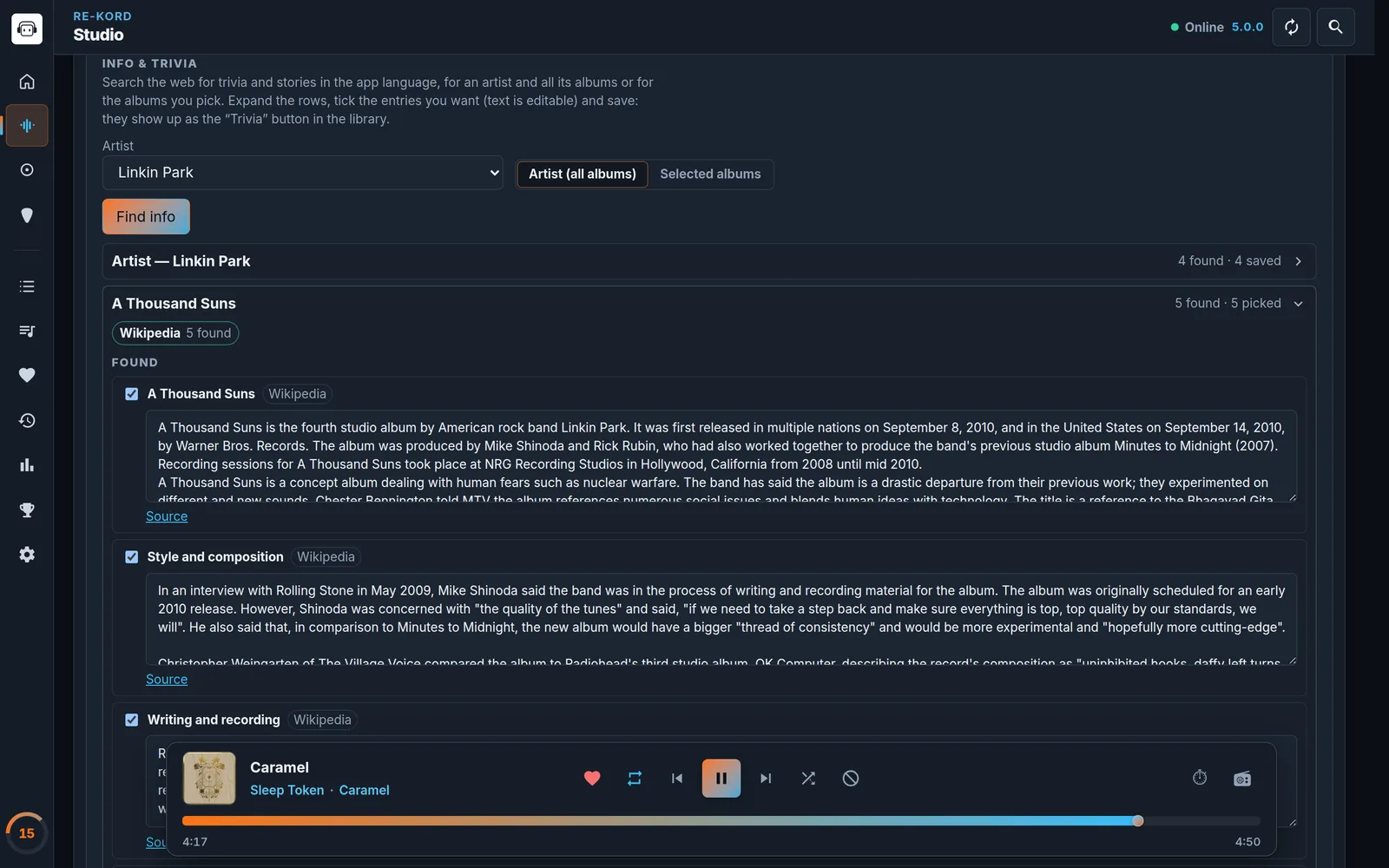
Studio › Covers: search iTunes, Deezer and more, or drop an imageStudio › Metadata › Info and trivia: pick, edit and save the stories
headphones
Listen: the full now-playing screen — cover and details, visualizer, Up next, recent plays, synced lyrics and the sleep timer.
travel_explore
Discover:Local picks which artists and albums appear in your account's library; Web lists new releases from YouTube Music by artists you own, with 30-second previews. Download opens the same confirmation as the Download tab, and releases you already have carry an In library badge.
label
Metadata: album metadata from Discogs, MusicBrainz and iTunes, track genres and dates from Deezer, iTunes and TheAudioDB — for one album or the whole library. Matching checks the track list first, so wrong matches are rejected instead of written. File titles cleans numbering and YouTube noise; Info and trivia saves stories from the web.
image
Covers: drop an image (JPG, PNG or WebP, up to 15 MB) or search iTunes, Deezer, Discogs and MusicBrainz, then Save cover: it is written into the album folder.
tips_and_updatesUseful tips
Quality alerts → the To fix listProtected edits, Discogs and Auto LRC
Step 6
Downloader (yt-dlp)
Studio › Download uses yt-dlp on the hub — bundled with RE-KORD Server and updatable from the app — to save music straight into your library.
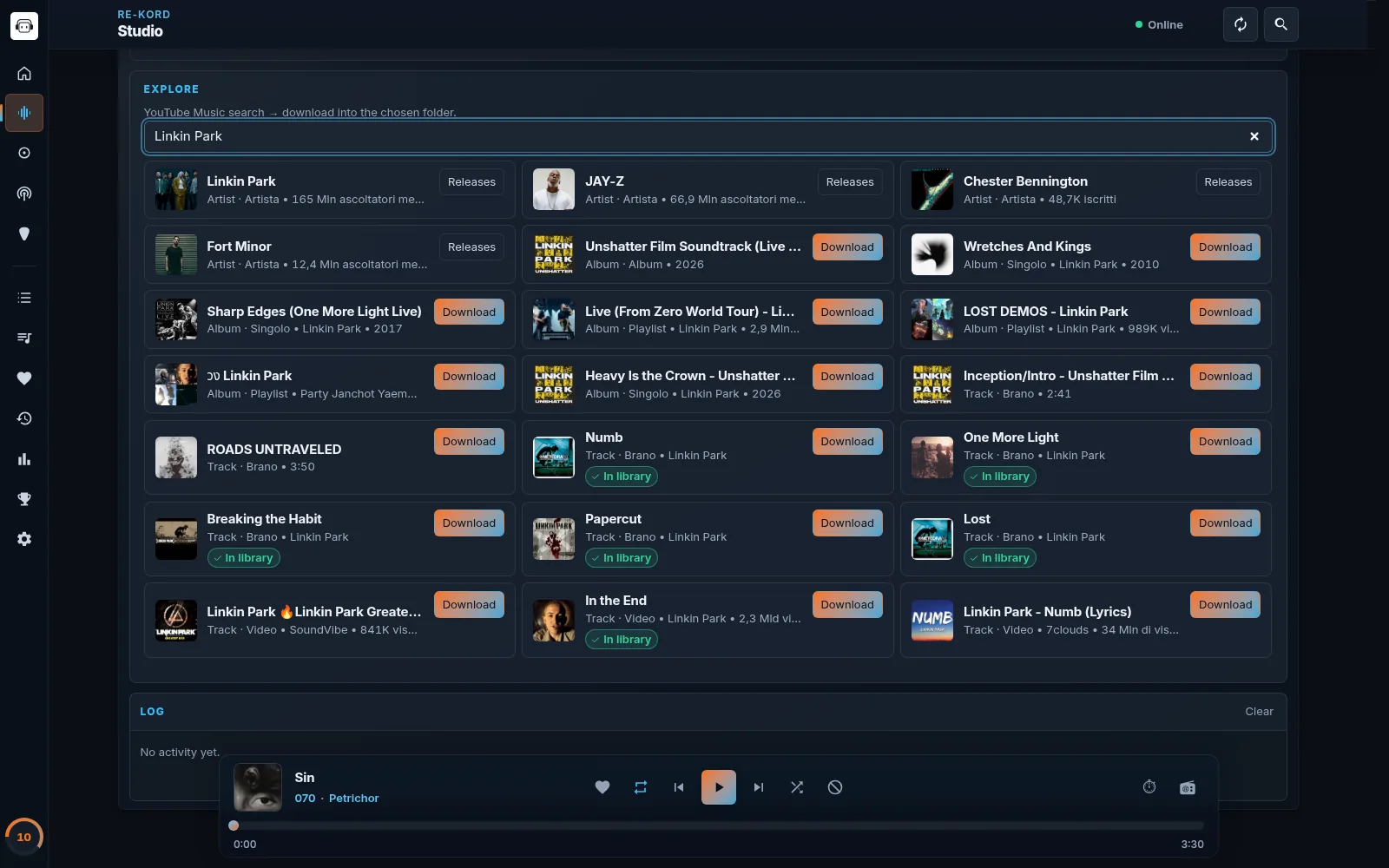
Studio › Download in Explore mode: search YouTube Music; what you already have is marked In library
1
Choose the save folder under Music: browse, search or create a subfolder. An album needs an artist or album folder.
2
Choose a mode:Classic — paste a YouTube, YouTube Music, SoundCloud or Bandcamp link and pick Single, Album or playlist, or Artist Releases (detected when you paste). Explore — search YouTube Music and download releases directly.
3
Download and import. A confirmation opens at once with the destination folder; for an album or playlist the track count fills in while yt-dlp counts, and you can confirm without waiting. Results already in your library carry an In library badge, and the confirmation offers Skip or Download anyway. The progress card sits between the form and the Log and stays at the bottom of the screen while you scroll. The job runs on the hub even if you close the tab; when it finishes, the folder is re-indexed and the Log lists what was downloaded, already present or failed.
Tags, cover and track numbers: the hub writes title, main artist, album and album artist (from the destination folder), track and disc number, date and genre into every file the download saved, with the thumbnail as a square cover; an album folder without a cover also gets cover.jpg. A single saved into an album folder takes the next number (05 - Title after 01–04). Files already in the folder are never touched. It can be turned off in the admin panel, Library › Embedded metadata.
tips_and_updatesUseful tips
yt-dlp updates, YouTube cookies and the JavaScript engine
Each user is responsible for the content they download. RE-KORD is intended for podcasts, copyright-free music, works you own the rights to, or material you are legally authorized to use.
Step 7
Plectr — Rhythm Game
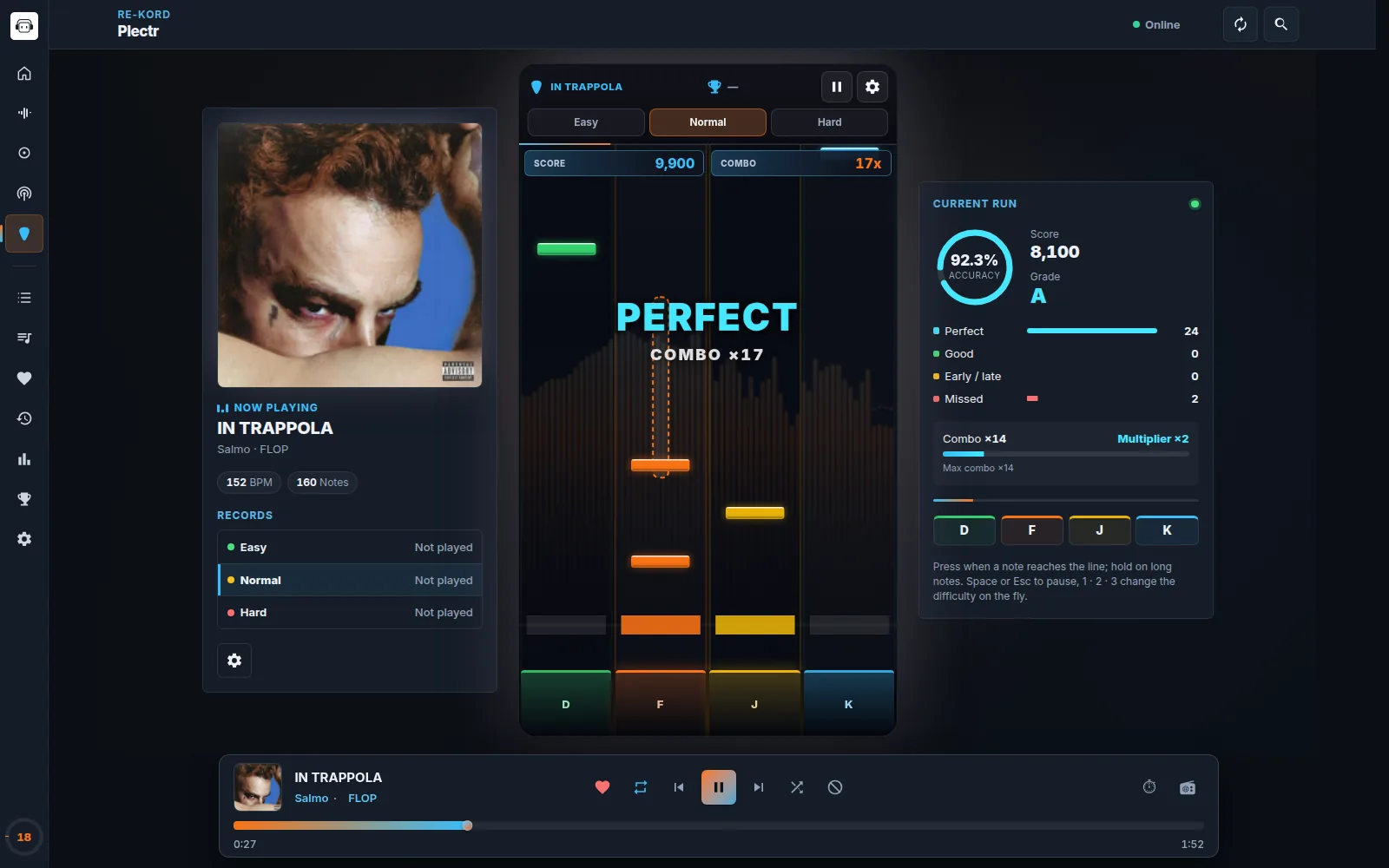
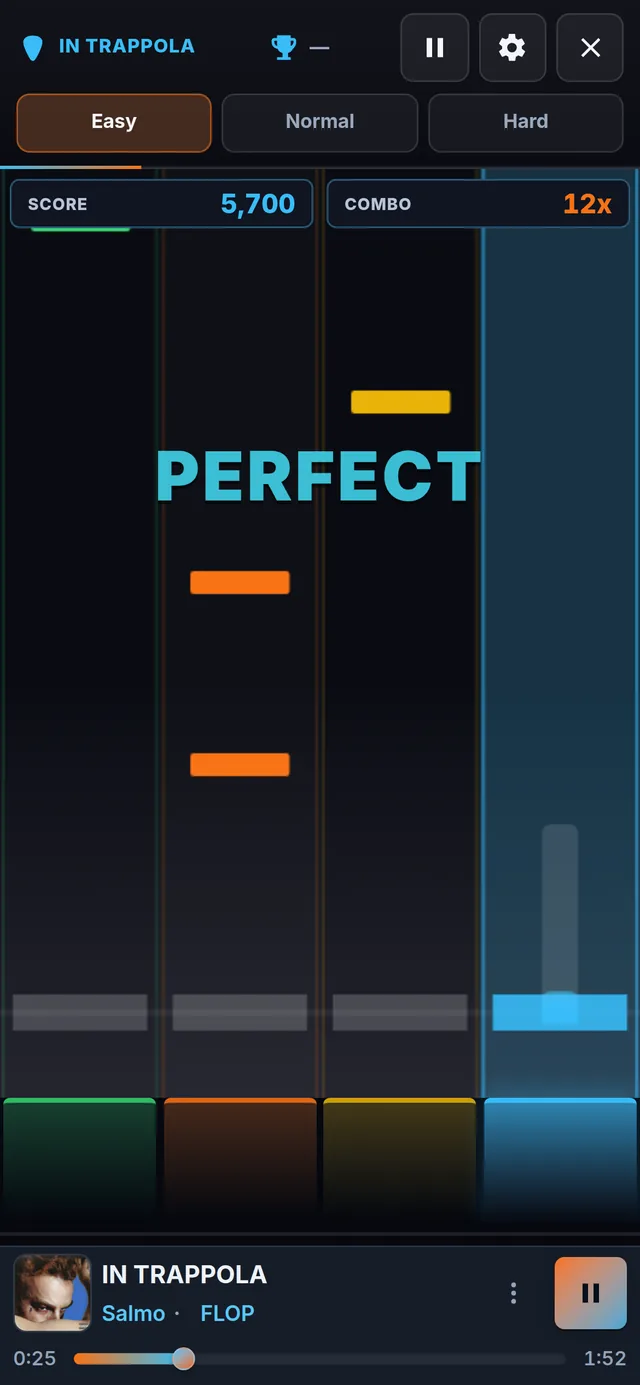
Plectr turns the song you are listening to into a four-lane rhythm game on a portrait stage. The chart is generated from the song's audio while the music keeps playing.
Plectr on desktop: the portrait stage, played with D F J KOn a phone: tap the lane pads — the player bar stays below the game
play_circle
Start from the player: play a song from the library as usual, then open Plectr from the navigation or press P: the game starts at once on that song.
sports_esports
Play: hit the notes when they reach the line and hold the long ones — DFJK by default, lane pads on touch screens. Every 12 hits the combo multiplier steps up, to ×4. Space or Esc pauses.
emoji_events
Results and records: accuracy, max combo and a grade from S to D. A new best is saved per song and difficulty on your account, on every device, and counts toward Statistics and Achievements.
tips_and_updatesUseful tips
Game settings: speed, latency and keysScoring and grades
Step 8
LAN & Remote Access
The hub listens on TCP port 7420. Any device on your network can open http://<hub-ip>:7420/ in a browser, or connect with the desktop or Android app. The admin panel lists the addresses under Network › Local network access, each with a QR code.
router
LAN: works out of the box. If phones cannot connect, allow port 7420 for your local network in the firewall — on Windows, allow RE-KORD Server on private networks.
cloud
Cloudflare tunnel: in the admin panel, Network › Access from outside › Start tunnel (or Settings › Network › Remote access in the client). After a few seconds you get a temporary HTTPS address on trycloudflare.com and a QR code — no account, no router setup.
lock
Careful: anyone who knows the tunnel address can use your hub, and the address changes every time. Stop the tunnel when you don't need it. To keep the hub on one machine only, set REKORD_BIND=127.0.0.1:7420.
powerPower: keep the hub awake
A computer that goes to sleep looks switched on but answers nobody — on the home network or through the tunnel — until someone touches it. In the admin panel, Network › Power › Prevent sleep has three choices:
Never (default) — the computer follows its own power settings and the hub does nothing.
Only when in use — awake while the hub works and for a few minutes after the last activity.
Always — no sleep while the hub runs: for a home server that must answer at any time.
Only system sleep is blocked: the screen still turns off and locks.
tips_and_updatesUseful tips
Pairing the Android appInstall the web client as an appDesktop app and a hub on another computer
Step 9
Accounts & Backup
One hub can hold many accounts — for family members or rooms. Each has its own library selection, favorites, playlists, play counts, moods, shuffle exclusions, theme, queue, Plectr records and achievements; the music folder, curated metadata and covers are shared. Switch accounts any time in Settings › Account.
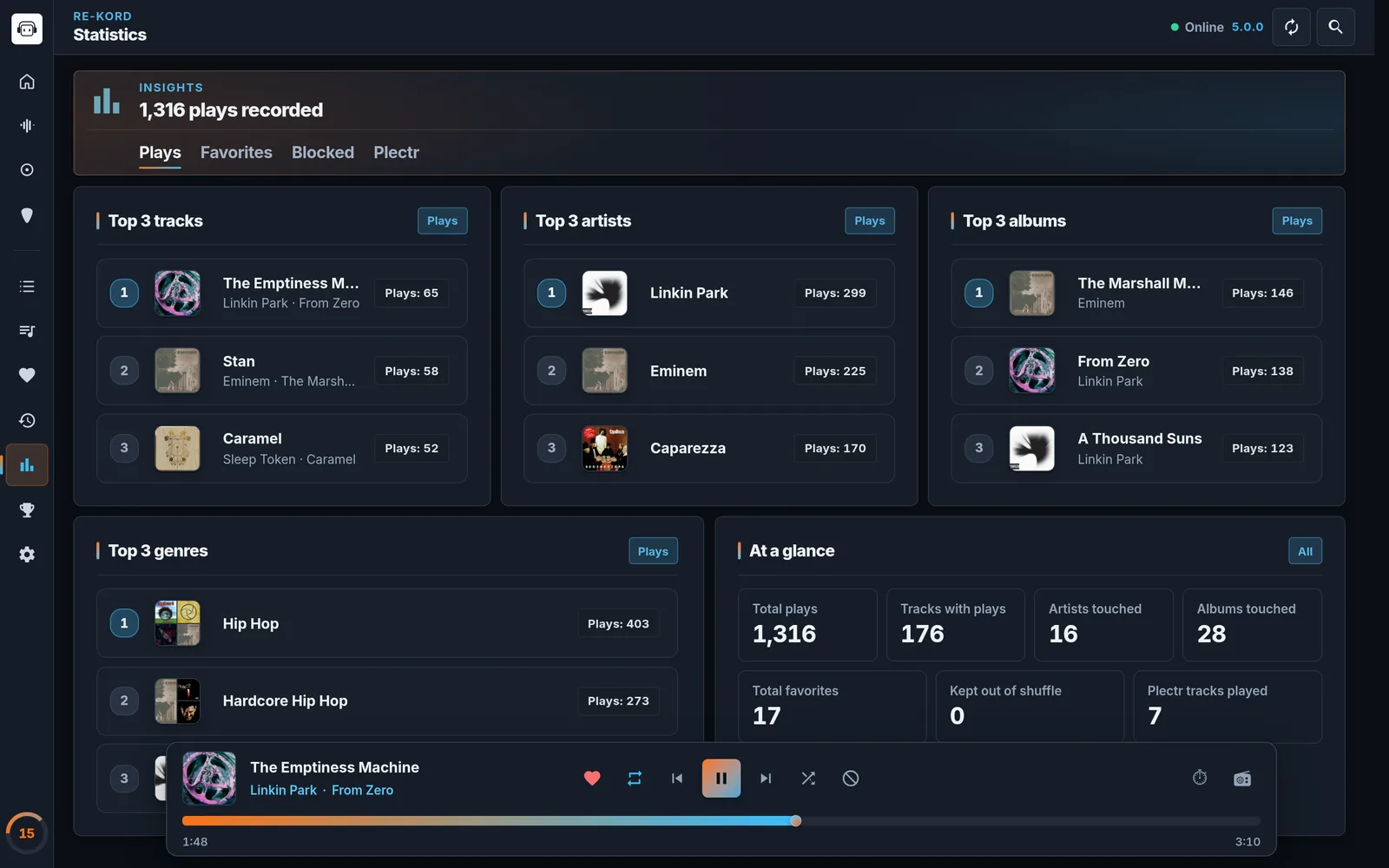
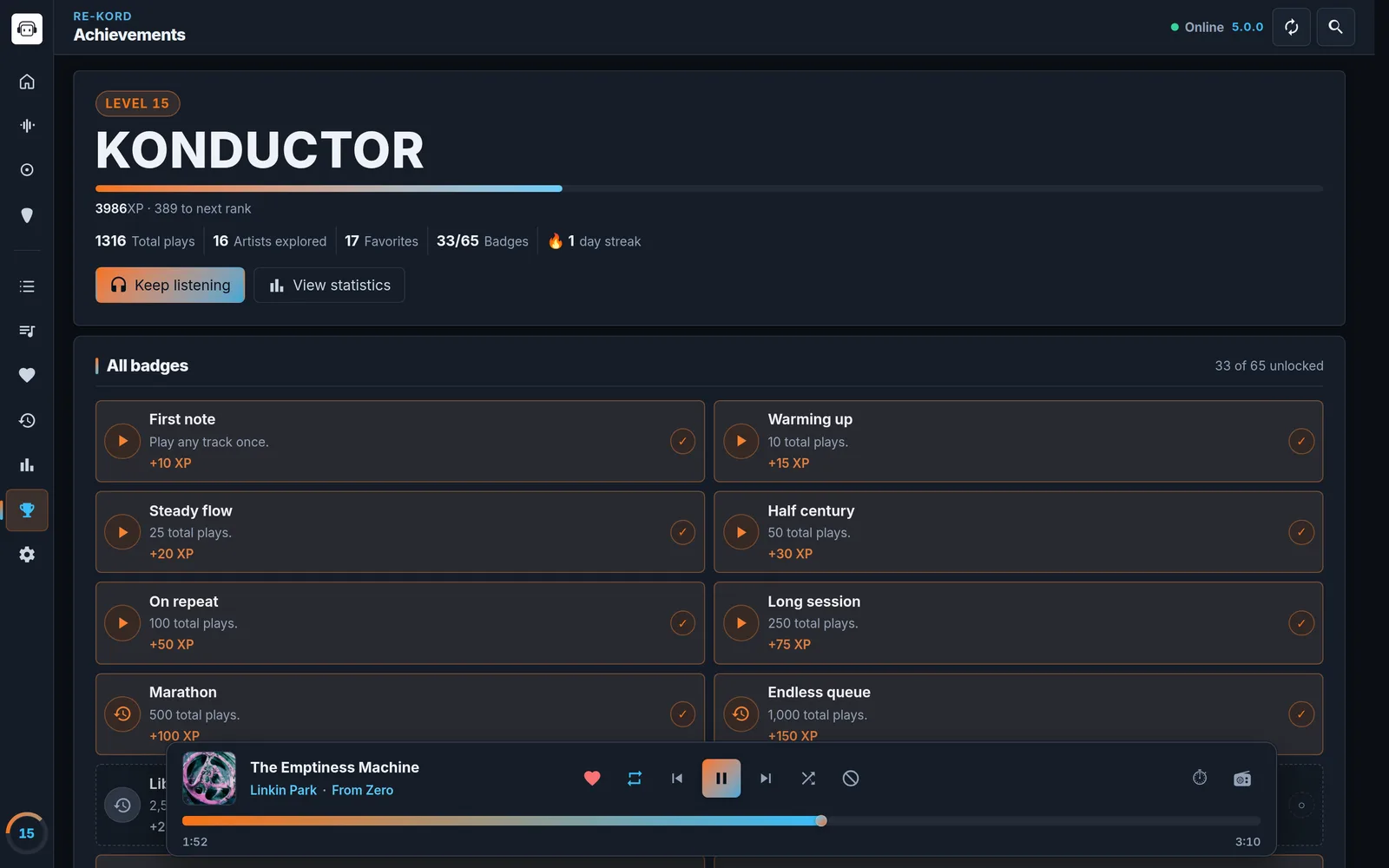
Statistics: your top tracks, artists, albums and genresAchievements: level, rank, streak and 65 badges per account
tips_and_updatesUseful tips
Accounts: the Default account and no passwordsBackup, restore and activity
Extra tips
A few more habits that apply across the app.
Turn the queue into a playlistAchievements and daily streakShare your themeWide screens: content and player bar widthLanguage: Italiano, English, DeutschDiagnostics and bug reports
Customization
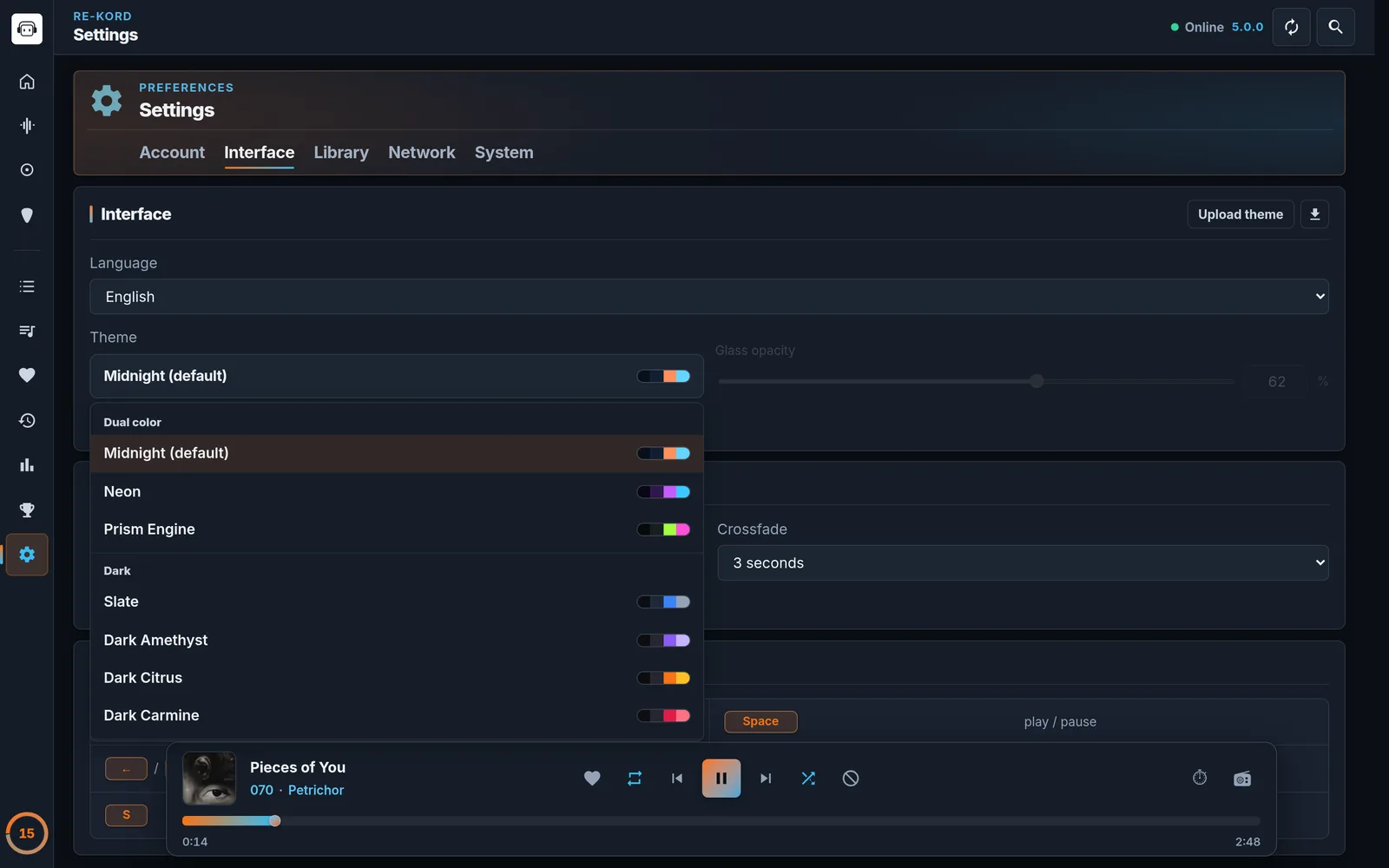
Choose a theme and a visualizer — the preview updates like in Settings › Interface. RE-KORD 5 has 17 presets in five groups plus a custom theme, with adjustable Glass opacity. In the real app, custom backgrounds also accept animated GIFs and can extract colors from the image.
Midnight·Bars
Settings › Interface: theme groups, Glass opacity and crossfadeA custom theme: background image with glass surfaces
Custom theme: choose Customize… to set four colors (background, sections, accent 1, accent 2) and a background color or image — JPEG, PNG, WebP or animated GIF. Extract colors from image builds a matching palette and Accent wash on background adds a soft gradient. On Linux desktops the glass blur is turned off to keep the interface fast. Karaoke shows synced lyrics on the visualizer; DiscoWall is a pixel wall that lights up on beats.
All clear?
Download RE-KORD and put this into practice. Found something that doesn't work? Open an issue on GitHub.